User manual
Record anyone, anywhere — straight into your DAW.
M8Studio pairs a DAW plugin on the engineer's side with the M8Artist app (or the web app) on the performer's side. Audio travels peer-to-peer as uncompressed PCM — what the artist sings is what lands on your track.
01 Getting started
One account works everywhere — M8Artist, the M8Studio plugin and the web app share the same login.
Your account
- Sign in with your email + password. Registration is invite-only right now — accounts are created by the M8Studio team.
- Forgot password? Use the link on the login screen — a reset email lands within a minute. One reset per 60 seconds; the button shows a cooldown.
- Your username sits next to Sign out. Click it to open your profile slide-over.
Your profile
- Set your role (artist / producer), categories, instruments, styles and bio — this is what others see in the Directory.
- Email is locked — it's your sign-in identity and can't be changed from the profile editor.
- Visibility: public lists you in the Directory; invisible hides you (friends can still reach you).
02 Installing
One installer covers everything. Run M8Studio-macOS-Installer.pkg, then tick what you need on the Customize step:
- M8Artist — standalone app →
/Applications(for the performer) - M8Studio — standalone app →
/Applications - VST3 →
/Library/Audio/Plug-Ins/VST3— most DAWs - AU (Audio Unit) →
/Library/Audio/Plug-Ins/Components— Logic, GarageBand - CLAP →
/Library/Audio/Plug-Ins/CLAP— Bitwig, Reaper
xattr -dr com.apple.quarantine /Applications/M8Artist.app
(or on the .zip/.pkg before opening). Alternatively:
right-click → Open → Open Anyway in Privacy & Security.
03 M8Artist app
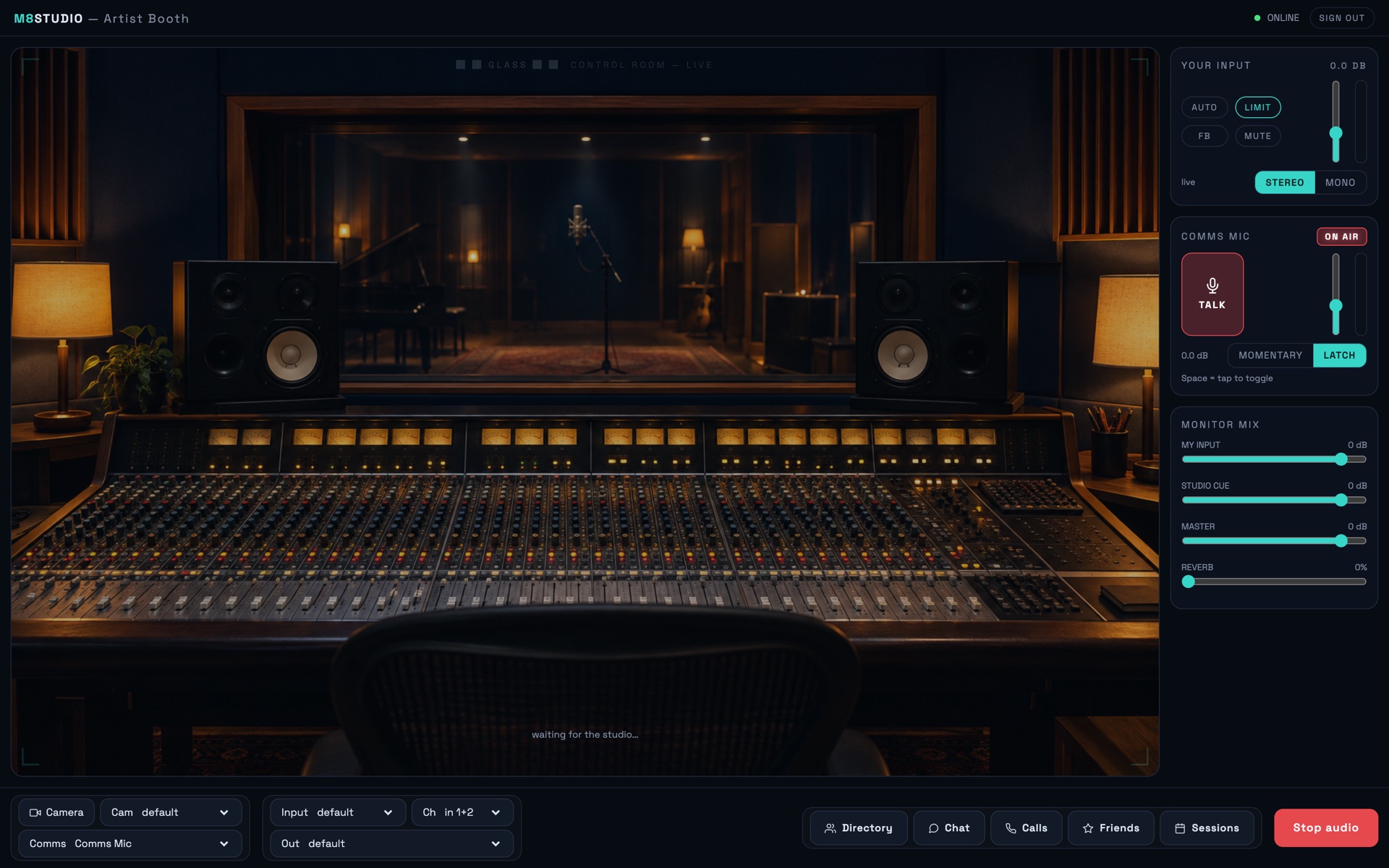
The performer's booth: a standalone app that sends your uncompressed mic audio to the engineer's DAW.
First launch
- Sign in. The app remembers you — next launch skips straight to the booth.
- Grant microphone permission when macOS asks.
- Pick your input device in the audio bar — an interface or USB mic beats the built-in one.
Going on air
- Wait for the engineer's call, or call them from the Directory.
- Enable audio arms your stream; the level meter should dance while you sing.
- MUTE mutes your outgoing stream — the pill pulses red so there's no doubt.
- TALK is your talkback latch to speak to the control room between takes.
Controls you'll use
Input gain & autogain
Set your level with the input fader, or hit Autogain — sing at performance level for a few seconds and it sets the gain for you.
Monitor mix
Blend your own voice with the engineer's return channel (the DAW playback) using the monitor faders — headphones recommended to avoid feedback.
Video
Optional camera preview in the stage area. Video adapts to the network first — audio quality is never sacrificed for it.
Help
The ? button in the header opens this manual in your browser.
04 M8Studio plugin
The engineer's side: a plugin that lives inside your DAW and receives the artist's PCM stream directly on a channel — no routing, no virtual cables.

In your DAW
- Insert M8Studio on an audio track or aux (VST3 / AU / CLAP — whichever your DAW hosts).
- Sign in with the same account — the plugin shows the identical interface to the app.
- Arm the track's record or monitor path like any other input.
Calling an artist
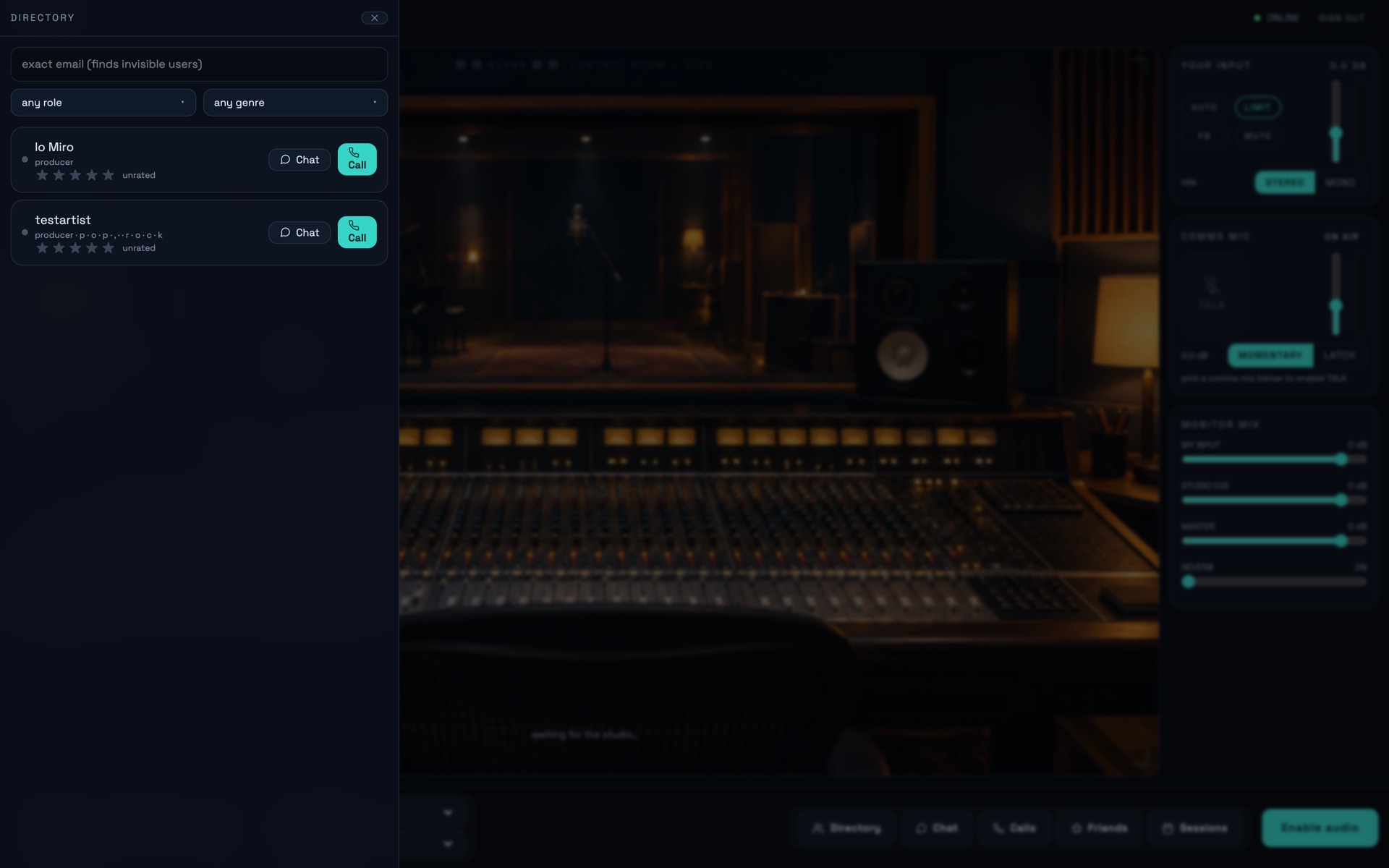
- Open the Directory, find the artist, hit call. They get a ring with accept/decline.
- Once connected the session goes ON AIR and artist audio lands on the plugin's output — record it like a live mic.
- Talkback (PTT or toggle) speaks to the artist's headphones without printing on the recording.
Return channel
Whatever the host plays into the plugin's inputs — cue mix, backing track, your talkback — streams back to the artist. One send, zero setup.
05 Web app
No install needed: m8studio.co.uk/app is the full artist booth in a browser — same account, same directory, same calls.
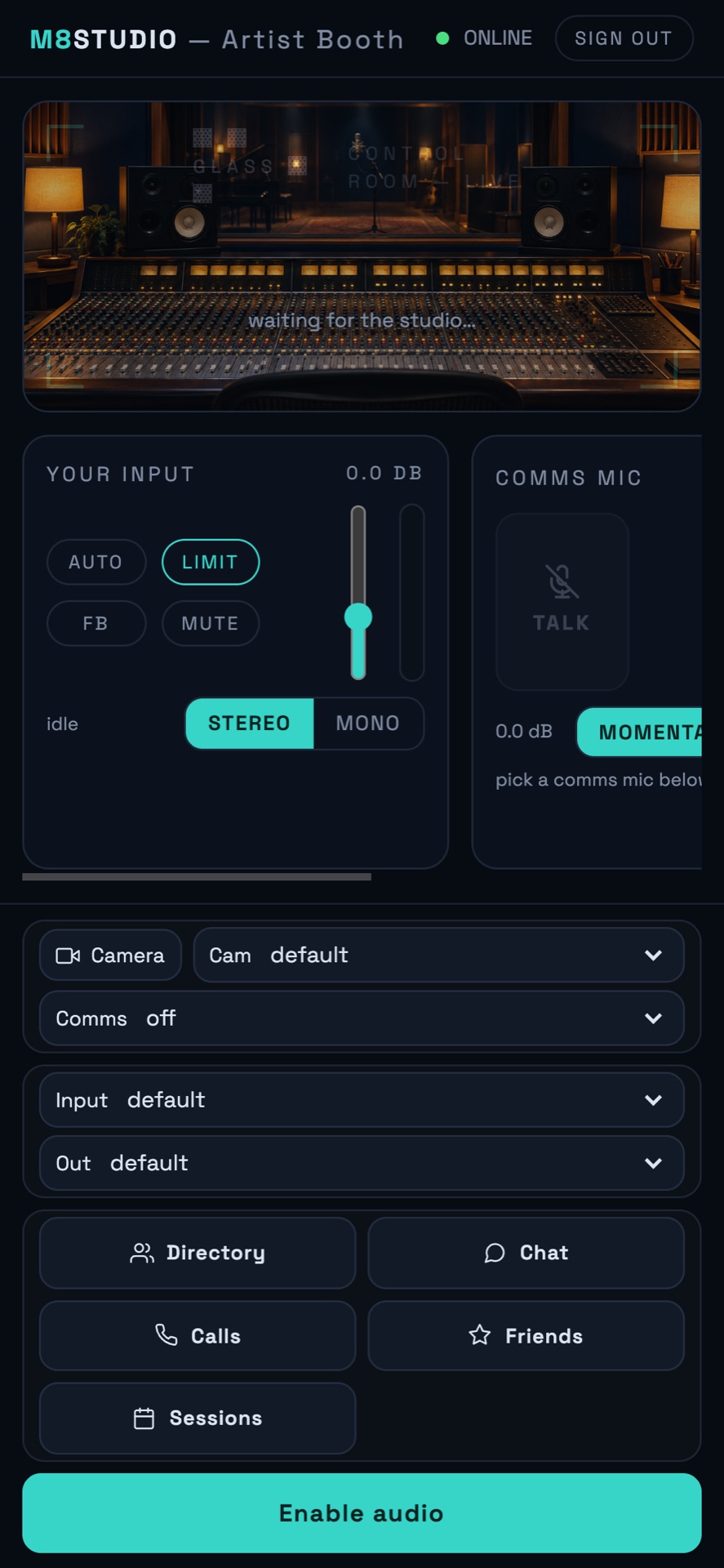
- Works in Chrome, Edge, Safari — the browser asks for mic permission.
- Fully responsive: directory, chat, friends, calls and your profile all work on a phone.
- The ? button in the header brings you back here.
06 Calls, chat & sessions
Directory & friends
- Directory lists everyone public — search by name, role, instrument or style.
- Add friend sends a request; if they already asked, it accepts instantly.
- Friends get a direct line — call and chat from the Friends panel.
Chat
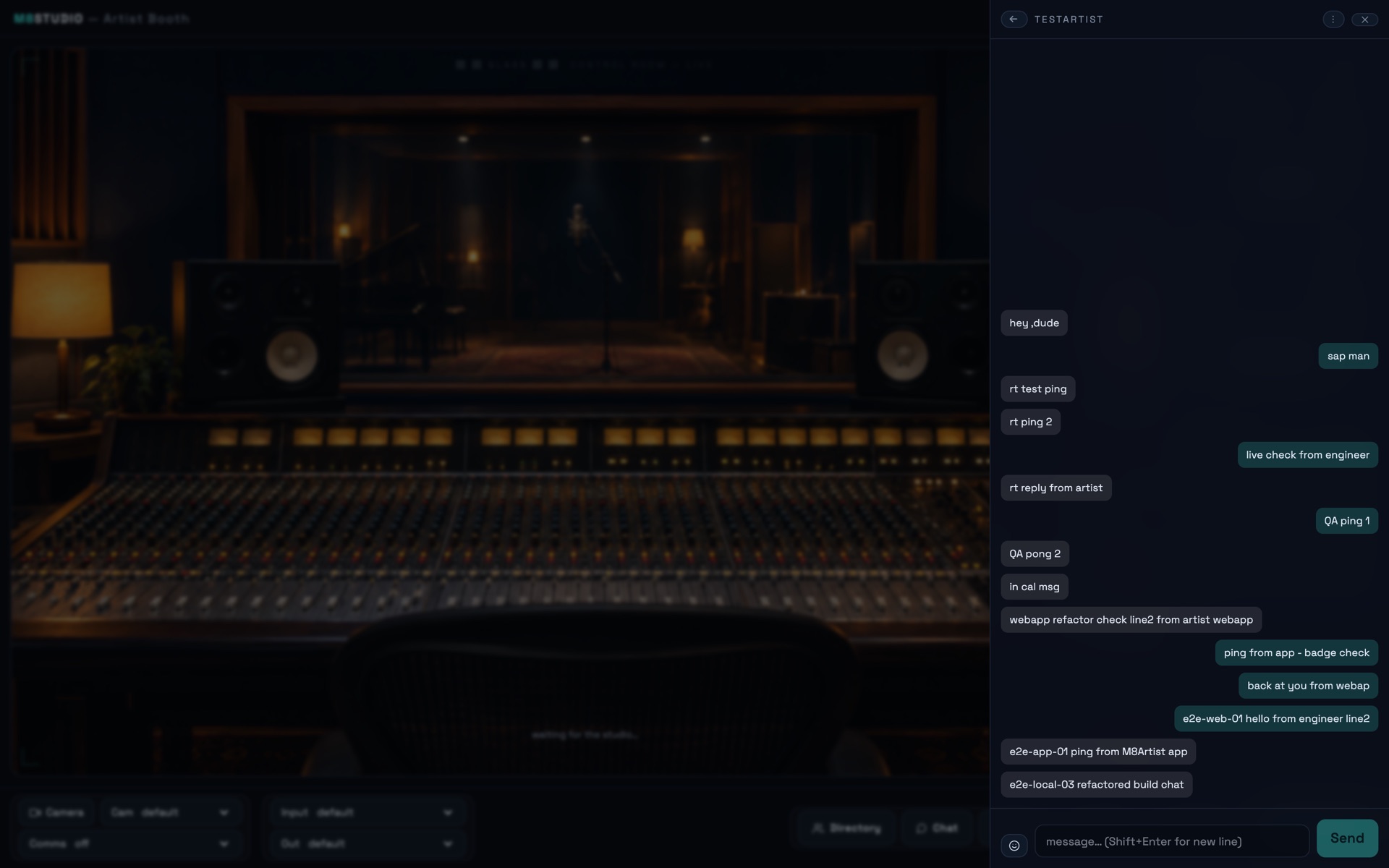
- Per-friend threads, live delivery, unread badge on the Chat tab.
- Works between app, plugin and web — message from anywhere.
Sessions
- Schedule a session with anyone: pick a time, they get notified in-app.
- Upcoming sessions live in the Sessions panel — join the call from there.
Presence
- The dot by a name is live presence — green means they're online now.
- Going invisible hides you from the directory but not from friends.
07 Recording
- Engineer side: the artist's PCM arrives on the plugin channel — record in your DAW as usual. A safety Backup.wav of the raw received stream is written during takes.
- Artist side: your own performance is captured locally as a WAV too — nothing is ever only on the wire.
- Take sync: when the engineer hits record, the artist sees the take start at the same moment — backups line up across both machines.
- Latency: audio is uncompressed PCM over P2P WebRTC. The connection adapts (96k → 48k → 44.1k) to keep the stream clean — never dropouts.

08 Network & firewall
- Calls are peer-to-peer: audio goes straight from artist to engineer — lowest possible latency.
- When a NAT blocks the direct path, the call falls back to the TURN relay automatically — no setup needed.
- Wired Ethernet > Wi-Fi for long takes. Close other uploads/downloads during a session.
- Outbound traffic only: HTTPS to
db.m8studio.co.ukfor login/chat, then the call itself runs over UDP (WebRTC).
09 Troubleshooting
"App is damaged / can't be opened"
Unsigned-build Gatekeeper block. Run
xattr -dr com.apple.quarantine /Applications/M8Artist.app once, or
right-click → Open. Notarised builds won't need this.
No reset / contact email arrives
Check spam first. Reset emails only go to the address your account was created with — a different inbox never receives them. One reset per 60 seconds.
I connect but hear nothing
Artist: check Enable audio is on and the input meter moves. Engineer: check the plugin channel's input monitor and the return-gain fader. Then check both sides' headphone/monitor mixes.
Call never connects / drops instantly
A strict firewall is blocking the direct path — the call should fall back to the TURN relay within a few seconds. If it doesn't, retry the call; if it persists, your network blocks outbound UDP (common on corporate Wi-Fi) — tether or move networks.
The header shows UPDATE → vX.Y.Z
A newer release exists. Click the pill — the app downloads the installer and opens it. Reinstall keeps your login.
Something's still wrong
Use the contact form — it mails the team directly.